
Overview
In this tutorial, you'll learn to link Excel Worksheet to Word Document instead of embedding Worksheet in the document. Below are some steps to make it work:
Excel worksheet to Work document
Step#1:
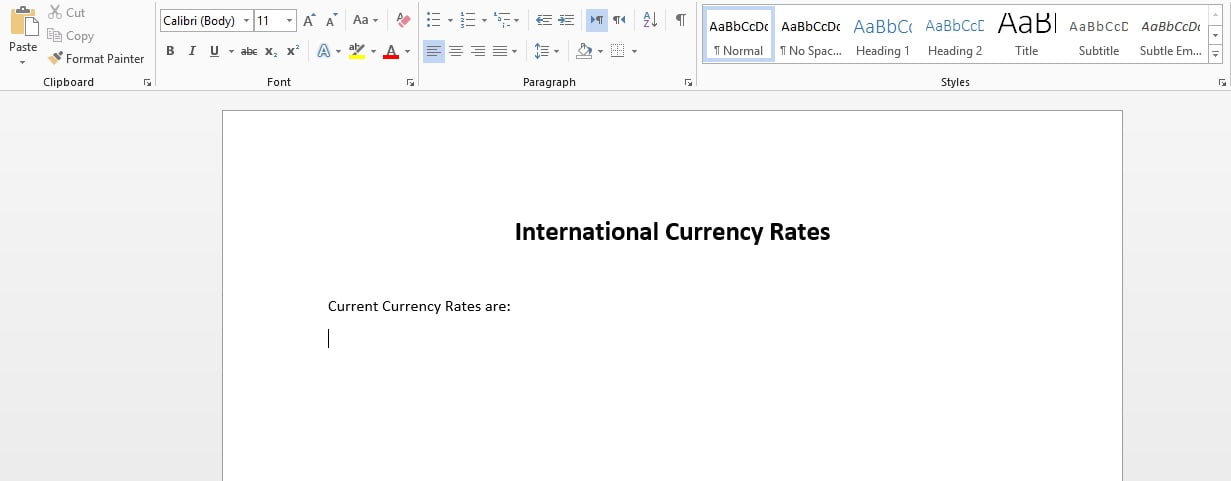
Open new Word Document. Define your template and Write whatever the text you want before the Worksheet.
Need help with Guides & Tutorials?
Get a free strategy session with our experts — no commitment required.
Step#2:
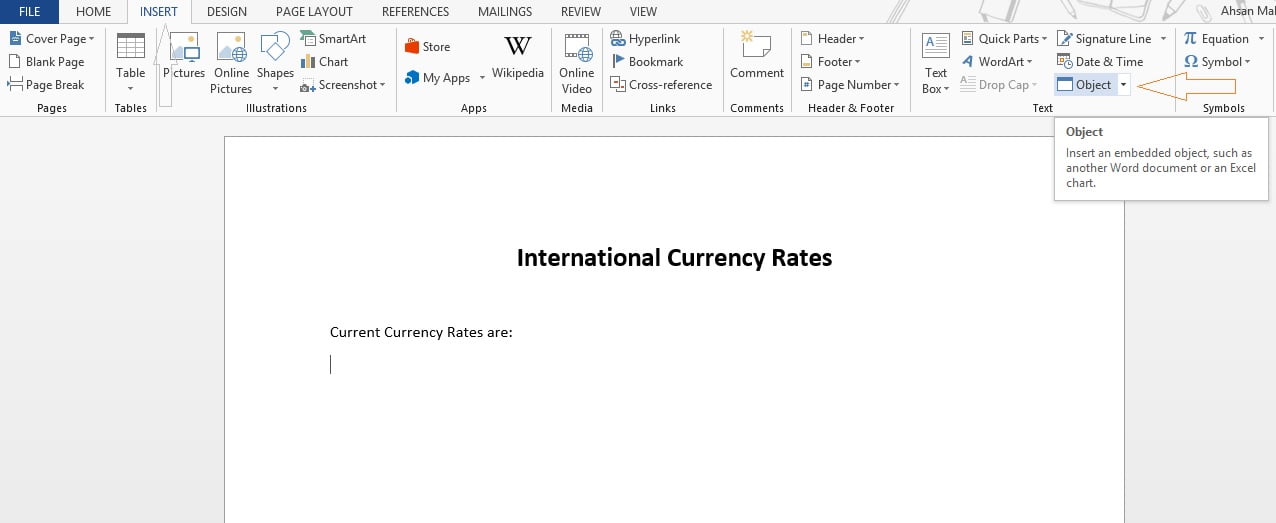
Next step is to link Excel Worksheet into the Word document. For that, we'll move to "Insert" from the ribbon tab and Select "Object" in "Text" Section. You can use shortcut key for that as “alt+n+j+j”.
Step#3:
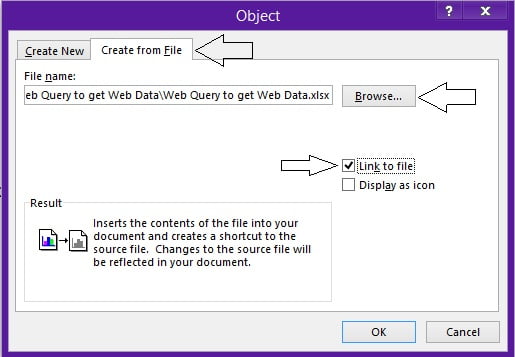
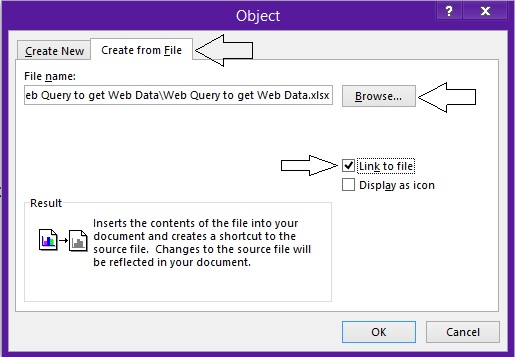
Object Popup box will open. Select "Create from file" tab and Press "Browse". You’ll see file selection box to Select file.
Key steps and notes
After selecting file, don't forget to check "Link to file". It'll create a shortcut display on your word document file.
HOW TO USE COMBO BOX FROM EXCEL FORM CONTROL
Step#4:
You'll see the Excel worksheet in Word document in the form of object.

Here is the view of Excel worksheet linked to Word Document.

You'll see if the value in worksheet is changed, Word document will not detect it suddenly. To update the link in document file, right click on Worksheet Object and select "Update Link". It'll update all the values.
Precautions:
Whenever you link the Excel file to Word Document, you need to keep the link breakage in mind. There are following reasons that will break the link in your word and Excel file.
Final notes
- If you'll rename the Excel file linked in the word document, you'll break the link.
- If you'll rename the folder that contains the excel file linked to document, you'll break the link.
- If you'll email the document file and doesn't attach linked excel worksheet, you'll break the link.
Please Share your review with me in the comment section to help improvements and make things better. I’d love to hear from you.


