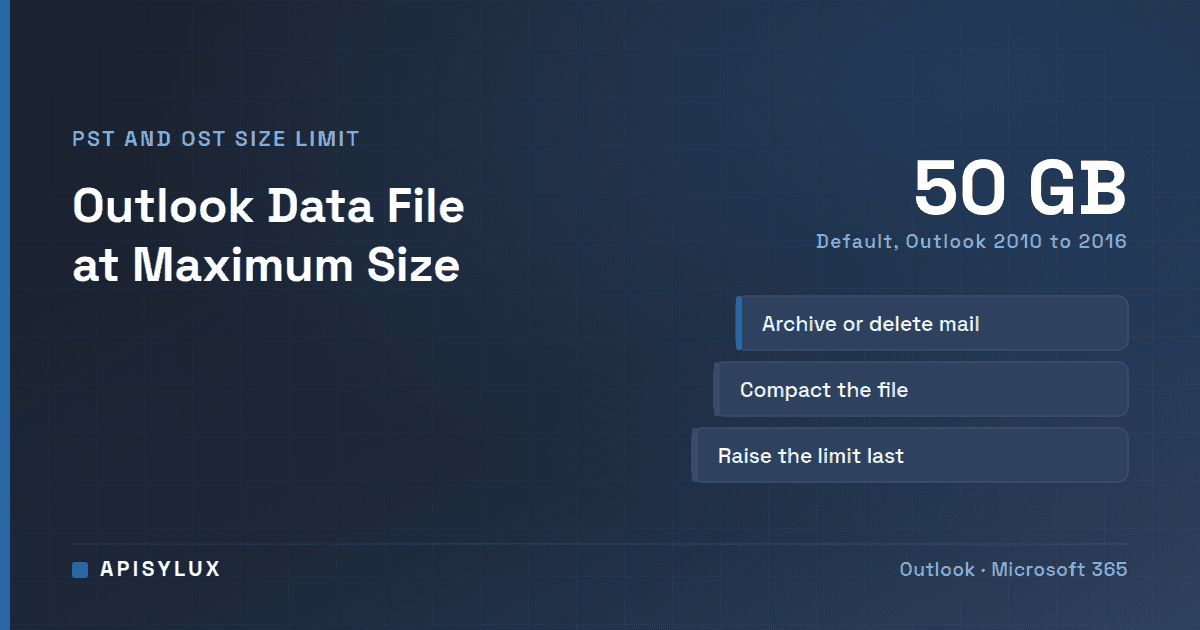
"The Outlook data file has reached the maximum size" means the .pst (Outlook Data File) or .ost (Offline Outlook Data File) on your computer has hit its size limit, which is 50 GB by default in Outlook 2010 through Outlook 2016. Outlook then refuses to move or copy items into the file. To fix it, delete and archive data, run Compact Now, and only as a last resort raise the MaxLargeFileSize registry value.
Key takeaways
- The limit belongs to the local file, not to your Microsoft 365 or Exchange mailbox. A mailbox can have plenty of space while the PST or OST on your PC is full.
- Deleting items does not shrink the file by itself. Run Compact Now afterwards, and expect it to take a while on a large file.
- For an OST, reduce how much mail is kept offline. For a PST, archive to a new file or to an online archive mailbox.
- Raising the limit in the registry is a last resort. Microsoft does not recommend going beyond its listed values because performance can decrease. Back up first.
- Version matters: Outlook 2010 to 2016 default to 50 GB, Outlook 2007 and 2003 to 20 GB, and an old ANSI file cannot exceed 2 GB.
What does "the Outlook data file has reached the maximum size" mean?
Outlook stores mail in one of two local file types. A .pst holds items you moved or archived to a local file, and Microsoft describes it as containing messages and other Outlook items such as contacts, appointments and tasks (Open and find items in an Outlook Data File (.pst)). An .ost (Offline Outlook Data File) holds a copy of your mailbox. Microsoft says a POP account stores everything in a .pst, while a Microsoft 365, Exchange, IMAP or Outlook.com account keeps a copy of the mailbox in an .ost (Reduce the size of your mailbox and Outlook Data Files).
Microsoft documents the error as appearing when you try to move items into a file at its limit:
Need help with Helpdesk?
Get a free strategy session with our experts — no commitment required.
Can't move the items. The file <path>\<filename>.pst has reached its maximum size. To reduce the amount of data in this file, select some items that you no longer need, and then permanently delete them.Microsoft says that once the file reaches its data limit, email messages can't be sent if sent items are stored in the Sent Items folder in that file, items can't be copied or moved within the file, and an archive PST used by Auto-Archive fails. Deleting or archiving items out of the file is still allowed. When mail is delivered to a full file in Cached Exchange Mode, the Mailbox Cleanup wizard opens. On an OST over the limit, forcing a sync (Shift+F9) can show an error in Send/Receive or, in Outlook 2013, intermittently crash. All of this is from Microsoft's page Configure size limit for PST and OST files in Outlook.
What is the size limit for a PST or OST file?
It depends on the file format and the Outlook version. The registry entries below are the ones Microsoft documents for both PST and OST files:
| Outlook version | Maximum file size (default) | Maximum data (default "Warn" value) |
|---|---|---|
| Outlook 2010, 2013, 2016 (and later versions using the 16.0 key) | 50 GB (MaxLargeFileSize = 51,200 MB) | 47.5 GB (WarnLargeFileSize = 48,640 MB) |
| Outlook 2007 and 2003 | 20 GB (20,480 MB) | 19 GB (19,456 MB) |
| Old ANSI format, any version | 1.933 GB (MaxFileSize); values above 2 GB are ignored | 1.816 GB (WarnFileSize) |
The 16.0 registry key is the one used by Outlook 2016, Outlook 2019, Outlook LTSC 2021 and Outlook for Microsoft 365, according to Microsoft's version note for related Outlook settings. Microsoft's size-limit page itself lists versions up to Outlook 2016, so treat the 50 GB default as the documented figure for those and check it on newer builds.
The names are misleading. Microsoft defines the "Max" value as the absolute maximum size of the file, and the "Warn" value as the maximum data the file may hold: once that is reached, no more data is added, although the physical file can still grow a little through internal processes. The Warn values do not make Outlook show a warning before the limit; Microsoft says so explicitly. When the Warn level is reached, Outlook triggers compaction to try to bring the file back to a usable size.
How do I fix it quickly?
Do these in order. They free space without touching the registry.
- Back up the file first. Close Outlook and copy the .pst (find where it lives under File > Account Settings > Account Settings > Data Files) to another drive. A file at its limit is a poor candidate for experiments, and a copy costs nothing.
- Empty Deleted Items and large items. Use File > Tools > Mailbox Cleanup. It can show mailbox size, find items older than a date or larger than a size, and empty Deleted Items and Conflicts. Microsoft notes that a large Deleted Items folder is a common cause of a large mailbox.
- Archive or move old mail out. Move old folders to a new, separate Outlook Data File (.pst), or use the online archive mailbox described below.
- Compact the file. Go to File > Account Settings > Account Settings, open the Data Files tab, select the file and choose Settings. For an Exchange or Outlook.com account, Microsoft adds one more step: open the Advanced tab and select Outlook Data File Settings. Then choose Compact Now and OK. Outlook compacts automatically in idle time only if more than 20% of the file is unused space, so after a big clean-up you may need to run it yourself (Reduce the size of your mailbox and Outlook Data Files).
- Try the move again. Microsoft notes you do not have to exit Outlook after compacting. If it still says the file is full, you have not freed enough space; look for the biggest folders first.
The file size you see in Explorer may only drop after compaction. That is normal.
How do I fix it when the full file is an OST?
An OST is a cache of a mailbox that lives on the server, so the right fix is to cache less. In Outlook for Windows with Cached Exchange Mode, go to File > Account Settings > Account Settings, double-click your Exchange account on the E-mail tab, and drag the Mail to keep offline slider to a shorter period. Click Next, accept the restart prompt, then Finish and restart Outlook. Microsoft documents these steps on its cached mode synchronization page. The default is 1, 3 or 12 months depending on disk size, and newer builds rename the setting Download email for the past.
Lowering the value makes Outlook delete the excess locally; raising it triggers a full resync. Microsoft notes the setting does not limit Calendar, Contacts, Tasks, Journal, Notes or Outbox folders, so a huge calendar can still fill an OST. Shared folders count too: Microsoft's size-limit page says that if Outlook is set to download shared folders, their contents are stored in your OST, which "may grow significantly".
If the OST is corrupt or stuck, Microsoft's Repair Outlook Data Files page says that with an Exchange account you can delete the .ost and Outlook recreates it the next time you open it. Warning: do this only if everything you need is in the server mailbox, because items that exist only in the OST, such as unsent Outbox items, go with it. Close Outlook and rename the file (for example to .ost.old) rather than deleting it, so you still have it if something is missing, and expect the full mailbox to download again.
When should I raise the limit with MaxLargeFileSize?
Only when cleaning up, archiving and a shorter sync window are not an option. Microsoft's page is not fully consistent here: its table gives a valid range for MaxLargeFileSize that tops out at 51,200 MB (50 GB), yet the same page says you can set the Unicode limits beyond the listed values, while not recommending it because performance can decrease. Treat anything above 50 GB as unsupported territory, and keep the backup you made above.
Warning: editing the registry incorrectly can cause serious problems. Microsoft advises backing up the registry before you change it, so export the key first (File > Export in Registry Editor). In a managed company, set these through Group Policy or your management tool instead of by hand.
- Close Outlook, then run
regedit. - Go to the policy key for your version. Microsoft's size-limit page gives this path for Outlook 2016, and its cached-mode page says the 16.0 key is also used by Outlook 2019, LTSC 2021 and Outlook for Microsoft 365:
UseHKEY_CURRENT_USER\Software\Policies\Microsoft\Office\16.0\Outlook\PST15.0for Outlook 2013 and14.0for Outlook 2010. Microsoft also lists a user-preference location atHKEY_CURRENT_USER\Software\Microsoft\Office\16.0\Outlook\PST. If any key along the path is missing, create it (New > Key); Microsoft's steps createPSTunderOutlookwhen it does not exist. - Create two DWORD (32-bit) Value entries, choose Decimal and enter the size in megabytes:
MaxLargeFileSizeandWarnLargeFileSize. - Keep the warn value at least 5 percent below the max so internal processes are not hindered. Microsoft's own defaults follow this rule: 48,640 is 95% of 51,200. For example, for 75 GB you would set
MaxLargeFileSizeto 76800 andWarnLargeFileSizeto 72960 (this arithmetic is ours: 75 x 1024, then 95%). - Restart Outlook, then run Compact Now.
These values apply to both PST and OST files, so raising them can also change how big an OST in Cached Exchange Mode may grow. Never set the ANSI value MaxFileSize above 2 GB; Microsoft says Outlook ignores it and holds the file at 2 GB to prevent corruption.
What is the long-term fix?
A PST is a local file that is easy to lose and hard to search across a team, so for Microsoft 365 or Exchange Online users the durable answer is to stop growing it. Enable an online archive mailbox: an extra mailbox on the server that users reach in Outlook and Outlook on the web (Learn about archive mailboxes). How much archive storage you get, and whether an archive is included at all, depends on the licence. Microsoft's Exchange Online limits page lists the archive size for each plan, including the plans where auto-expanding archiving can take it up to 1.5 TB and the ones that need the Exchange Online Archiving add-on.
An admin can turn it on per user in the Exchange admin center under Recipients > Mailboxes (Others > Manage mailbox archive), or in Exchange Online PowerShell:
Enable-Mailbox -Identity user@contoso.com -ArchiveCheck the user's plan against that table first. Microsoft's enable archive mailboxes page notes that once the archive is enabled, items older than the archiving policy move into it, and the default policy moves items two years after delivery, so tell users their older mail will move. Existing PST contents can then be imported into the archive rather than kept on laptops: Microsoft's PST import by network upload can target a user's archive mailbox, as long as the archive is enabled first.
FAQ
Does the error mean my Microsoft 365 mailbox is full?
No. It refers to the local PST or OST file. The mailbox on the server has its own quota and its own error messages.
Why is the file still full after I deleted thousands of emails?
Deleted data leaves unused space inside the file until it is compacted. Run Compact Now, and empty Deleted Items so the items are actually gone.
Is it safe to raise the limit above 50 GB?
Microsoft allows it but does not recommend it because performance can decrease. Back up the file, treat it as temporary and move to an archive mailbox or a smaller sync window.
Can I just delete the OST?
For an Exchange account, Microsoft says you can delete the .ost and Outlook recreates it the next time you open Outlook. It is unsafe if the OST holds items that never reached the server, so rename it instead of deleting it, as described above.
Does the new Outlook have this problem?
The steps here are for classic Outlook for Windows. Microsoft's size-limit article covers classic versions only, and new Outlook has more limited .pst support (Microsoft lists opening, searching, moving, copying and exporting). To tell them apart, Microsoft says to look at the top app bar: if you see only the Outlook icon you are on classic Outlook; if the product name is next to it you are on new Outlook.
If this keeps recurring across several users, see our email troubleshooting and Microsoft 365 administration pages.