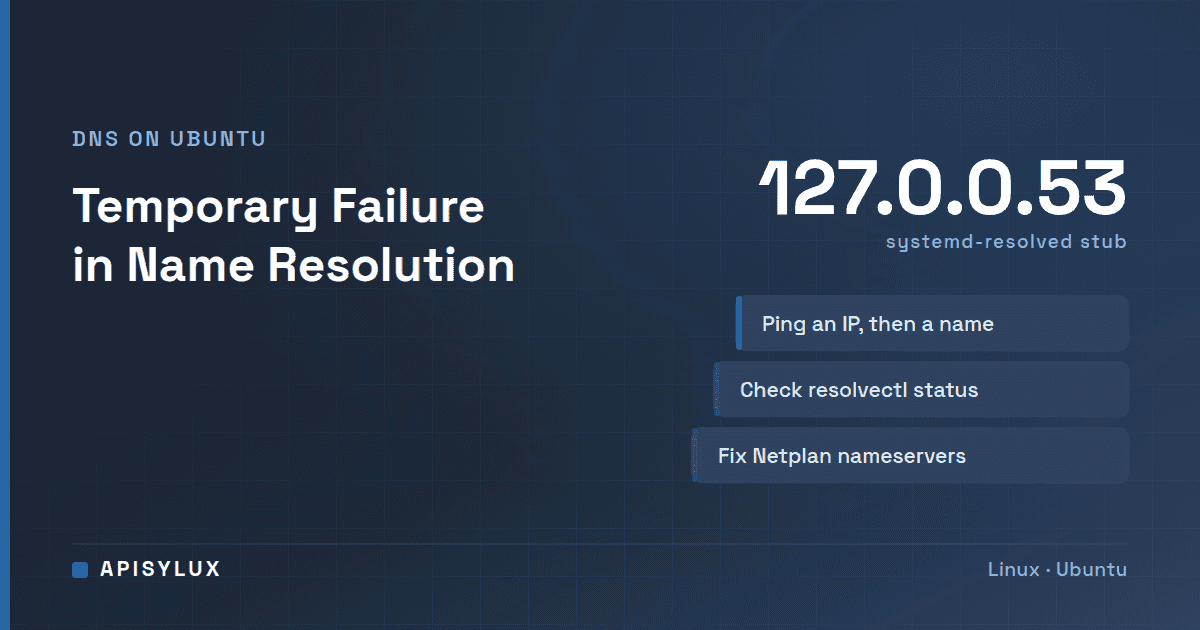
The error "temporary failure in name resolution" means the resolver on your Ubuntu machine could not get an answer from a DNS server, so the program could not turn a hostname such as ubuntu.com into an IP address. It is a DNS problem, not necessarily a dead network. Test with ping -c 2 1.1.1.1 and then ping -c 2 ubuntu.com: if the first works and the second fails, check resolvectl status, the /etc/resolv.conf symlink and the Netplan nameservers setting.
ping -c 2 1.1.1.1        # works? the network is up
ping -c 2 ubuntu.com     # fails? name resolution is the problem
resolvectl status        # which DNS servers is the system using?
ls -l /etc/resolv.conf   # is the symlink intact?
Key takeaways
- The text comes from the C library, not from the program you ran: it is glibc's description of the
EAI_AGAINlookup error.pingandsshprint it as is;aptreports the same failure as "Temporary failure resolving". - First split the problem in two: pinging an IP address tests connectivity, pinging a name tests DNS as well.
- On Ubuntu 22.04 and 24.04
/etc/resolv.confis normally a symlink to../run/systemd/resolve/stub-resolv.conf, so applications talk to the local stub at127.0.0.53, which forwards to the DNS serverssystemd-resolvedknows about. The stub, the link to it, or the upstream servers can be at fault. - The permanent fix on Ubuntu Server is the
nameserversblock in a Netplan file. Writing to/etc/resolv.confthrough the symlink edits a file thatsystemd-resolvedgenerates, so your change does not last. - "sudo: unable to resolve host" is a different, local problem in
/etc/hosts. It is covered below.
What does "temporary failure in name resolution" mean?
Programs do not query DNS themselves. They call the C library, which reads /etc/nsswitch.conf to decide where to look up host names. The nsswitch.conf(5) manual says that for the hosts database you can use files (the local /etc/hosts) and dns, and that the sources are queried in the order listed until a result is found. The lookup function, getaddrinfo, returns the error code EAI_AGAIN when, in the words of getaddrinfo(3), "the name server returned a temporary failure indication. Try again later." glibc's text for that code is "Temporary failure in name resolution", which is what ping and ssh print. apt words the same failure as "Temporary failure resolving 'archive.ubuntu.com'", and curl reports a failed lookup as "Could not resolve host". The message tells you DNS did not answer; it does not tell you why.
The usual causes:
Need help with Linux?
Get a free strategy session with our experts — no commitment required.
- No DNS server is configured for the network interface, or the configured one is unreachable.
- The machine has no route out at all (cable, VLAN, gateway or firewall).
systemd-resolvedis stopped or crashed, but/etc/resolv.confstill points at its stub./etc/resolv.confis a broken symlink, an empty file, or was overwritten with servers that do not answer.- A VPN or a script changed the DNS settings and left them wrong.
Is it DNS or no network at all?
Run the two pings from the opening, in this order. The IP address 1.1.1.1 is used only because it needs no name lookup. Some networks block outgoing ping, so if both fail, confirm with your gateway's address or another known IP before concluding the network is down.
| Result | What it tells you | Go to |
|---|---|---|
| Both pings fail (for example "Network is unreachable" or 100% loss) | No connectivity: link, IP address, gateway or firewall | Check ip -br addr and ip route before touching DNS |
| IP ping works, name ping says temporary failure | The network is fine; DNS is broken | The next sections |
| Both work | The fault is gone or intermittent | Re-run the failing command; see the cache note below |
ip -br addr        # does the interface have an IPv4 address?
ip route           # is there a "default via ..." line?
If there is no default route, DNS is not your first problem. Fix the address and gateway in Netplan (next sections) and come back. If the machine is a rented server, the provider's console or support is the next step.
How do I check systemd-resolved and /etc/resolv.conf?
Start with what the system believes. The resolvectl(1) manual says resolvectl status "shows the global and per-link DNS settings currently in effect", and resolvectl query resolves names through the same service.
resolvectl status
resolvectl query ubuntu.com
In the output, look at the Link section for your interface (for example ens18 or eth0). It should list Current DNS Server and DNS Servers. If neither your link nor the Global section lists a DNS server, the resolver has no server to ask, and the fix is in Netplan or in your DHCP server. If resolvectl itself answers but a name still fails in an application, the problem is between the application and the resolver, which is the /etc/resolv.conf file.
Is the service running?
systemctl status systemd-resolved
sudo systemctl enable --now systemd-resolved
The second line starts the service and makes it start at boot. The systemd-resolved(8) manual says the service provides a local DNS stub listener on 127.0.0.53 and 127.0.0.54. If the service is stopped, anything pointing at that stub gets no answer. On Ubuntu 24.04 the resolver is packaged separately as systemd-resolved; on 22.04 it is part of the systemd package.
What should /etc/resolv.conf look like?
ls -l /etc/resolv.conf
readlink -f /etc/resolv.conf
cat /etc/resolv.conf
The manual describes several ways to connect /etc/resolv.conf to the service. Two matter in practice:
| Symlink target | What the file contains | Notes |
|---|---|---|
/run/systemd/resolve/stub-resolv.conf | nameserver 127.0.0.53 as the only server | The manual calls this mode recommended. Ubuntu's 22.04 and 24.04 packages create this link, as the relative path ../run/systemd/resolve/stub-resolv.conf. Needs systemd-resolved running. |
/run/systemd/resolve/resolv.conf | The real upstream servers, listed directly | Bypasses the stub, so applications talk to the upstream servers themselves. Works without the stub listener. |
On a standard install, readlink -f should print /run/systemd/resolve/stub-resolv.conf. Two broken states are common:
- The link points to a file that does not exist. The target lives under
/run, which does not survive a reboot, andsystemd-resolvedmaintains the file while it runs. A missing target therefore usually means the service is not running. - The path is a regular file, not a symlink. Someone, a script or a provider image replaced it. It may contain servers that are down, or it may be empty. The
resolv.conf(5)manual says that with nonameserverentries the resolver uses the name server on the local machine, and lists at most three servers (MAXNS).
Restoring the stub symlink safely
Warning: this replaces a system file. Do it only after you understand what is there. Replacing /etc/resolv.conf discards its current contents, and anything that managed the old file (a VPN client, a provider script, resolvconf, NetworkManager in a custom mode) will no longer control DNS. Work in this order: start the service so the target exists, keep a copy of what is there now, then replace the link and test.
sudo systemctl enable --now systemd-resolved
sudo cp -a /etc/resolv.conf /root/resolv.conf.bak    # keeps the old file, or the old link itself
sudo ln -sf ../run/systemd/resolve/stub-resolv.conf /etc/resolv.conf
ls -l /etc/resolv.conf
resolvectl query ubuntu.com
To undo it, put the backup back with sudo cp -a --remove-destination /root/resolv.conf.bak /etc/resolv.conf. The --remove-destination option removes the new link first, so the copy does not write through it into the resolver's own file. The link is relative (../run/...) because that is the form Ubuntu's own package scripts create. If the lookup now works, you have restored the standard layout. If you deliberately run a different resolver such as dnsmasq or Unbound on the host, do not do this; fix that resolver instead.
Testing a DNS server without changing anything permanent
The resolvectl dns command gets or sets DNS servers for one interface. Use it to prove that a different server fixes the problem. It does not persist: the resolvectl(1) manual notes that when an interface disappears its configuration is lost, and nothing is written to your Netplan files, so treat it as a test, not a fix. sudo resolvectl revert ens18 undoes it.
sudo resolvectl dns ens18 1.1.1.1 9.9.9.9
resolvectl query ubuntu.com
sudo resolvectl flush-caches
Replace ens18 with your interface name from ip -br addr. flush-caches empties the resolver's local cache, which clears a cached failure. If this makes names work, make the change permanent in Netplan.
How do I set nameservers in Netplan on Ubuntu Server?
Ubuntu Server reads network settings from YAML files in /etc/netplan/. The Netplan reference defines nameservers as the way to "set DNS servers and search domains, for manual address configuration", with addresses and search fields. Find your file and interface name, then edit it:
Warning: a bad Netplan file can cut a remote server off the network. Back the file up outside /etc/netplan/ first (Netplan reads every .yaml file in that directory, so a copy left there would be applied too), keep console access if you have it, and apply with netplan try as shown below.
ls /etc/netplan/
ip -br addr
sudo cp -a /etc/netplan/50-cloud-init.yaml /root/    # your filename may differ
sudo nano /etc/netplan/50-cloud-init.yaml
A static configuration with DNS looks like this. YAML is indentation-sensitive: use spaces, never tabs.
network:
  version: 2
  ethernets:
    ens18:
      dhcp4: false
      addresses: [192.168.1.50/24]
      routes:
        - to: default
          via: 192.168.1.1
      nameservers:
        addresses: [1.1.1.1, 9.9.9.9]
        search: [example.local]
The reference marks the older gateway4 key as deprecated in favour of routes with to: default, which is why the example uses the latter. Replace the addresses with your own network's values. If the machine gets its address from DHCP, the DHCP server normally hands out DNS servers too. The reference says that with use-dns at its default of true, "the DNS servers received from the DHCP server will be used and take precedence over any statically configured ones", and notes that the setting currently only has an effect on the networkd back end (Netplan's default renderer). To force your own servers on a DHCP interface, turn that off:
      dhcp4: true
      dhcp4-overrides:
        use-dns: false
      nameservers:
        addresses: [1.1.1.1, 9.9.9.9]
Apply it with netplan try rather than netplan apply, especially over SSH. The netplan-try(8) manual says it applies the configuration and rolls it back automatically if you do not confirm within the time limit, which defaults to 120 seconds. That protects you from most typos on a remote server, but it is not a guarantee: the manual has a "known issues" section and says to check the network configuration if netplan try times out or is cancelled.
sudo netplan try        # press Enter to accept before the timeout
sudo netplan apply      # or apply directly when you are at the console
resolvectl status
resolvectl query ubuntu.com
If Netplan warns "Permissions for … are too open. Netplan configuration should NOT be accessible by others", restrict the files with sudo chmod 600 /etc/netplan/*.yaml. On cloud images, a file such as 50-cloud-init.yaml is written by cloud-init from the provider's metadata, so a manual edit there may not be the last word. cloud-init's network configuration docs describe turning its network configuration off with network: {config: disabled} in a file under /etc/cloud/cloud.cfg.d/; check your provider's guidance before doing that. On Ubuntu Desktop the interface is usually managed by NetworkManager, so set DNS in the network settings or with nmcli instead.
"sudo: unable to resolve host" is /etc/hosts, not DNS
The message "sudo: unable to resolve host myserver: Temporary failure in name resolution" appears when sudo tries to look up the machine's own hostname and the lookup fails; sudo's source logs "unable to resolve host" followed by the resolver's error. It is about the machine's own name, not about the command you ran. The hosts(5) manual says /etc/hosts associates IP addresses with hostnames, one line per IP address in the form IP_address canonical_hostname [aliases...]. If your hostname is not in that file, the lookup falls through to DNS, and DNS fails.
hostname
grep -n "$(hostname)" /etc/hosts
If grep prints nothing, add the hostname. Back up the file first (sudo cp -a /etc/hosts /root/hosts.bak) and add a line rather than changing the existing localhost entries. The Debian reference manual uses 127.0.1.1 for the machine's own name, and says a system with a permanent IP address should use that address instead (Debian reference, chapter 5):
127.0.0.1   localhost
127.0.1.1   myserver
Use the exact output of hostname in place of myserver. This fixes only the sudo warning. It does not fix DNS for other names, so if ping ubuntu.com also fails, continue with the sections above. For more on local names, see our guide to localhost and domain names on Ubuntu.
Still failing? Check these last
- Firewall. DNS uses port 53 on UDP and TCP. A host firewall or network ACL that blocks outbound port 53 gives exactly this error even with perfect configuration.
- Router or DHCP-provided DNS is down. Test with a public server using
resolvectl dnsas shown above. If that works, the local DNS server is the fault. - IPv6 DNS servers without an IPv6 route. If
resolvectl statuslists only IPv6 server addresses andip -6 routeshows no default route, the resolver cannot reach them. Add an IPv4 server in Netplan. - Cached failure. Run
sudo resolvectl flush-cachesand retry.
If you manage servers for a team and DNS faults keep returning after reboots or provider changes, see our remote IT support page, or the private server hosting page for hosted servers.
Primary documentation: systemd-resolved(8), resolvectl(1), resolv.conf(5), the Netplan YAML reference, netplan-try(8), hosts(5) and nsswitch.conf(5).
FAQ
Why does ping 8.8.8.8 work but ping google.com fail?
Because the first needs no DNS and the second does. It means the network path is fine and name resolution is broken, so follow the DNS sections of this guide, not the routing ones.
Can I just edit /etc/resolv.conf to add a nameserver?
Only if it is a regular file you control. On a default Ubuntu install it is a symlink to the stub file that systemd-resolved maintains, so an edit is lost or overwritten, and replacing the link detaches the machine from the resolver. Set the server in Netplan instead, or use resolvectl dns for a temporary test.
Why does it only fail inside Docker?
Docker's networking documentation says containers use the host's DNS servers by default: on the default bridge network a container gets a copy of the host's /etc/resolv.conf, and on a user-defined network Docker's embedded DNS server at 127.0.0.11 forwards lookups to the host's servers. A container also has its own loopback, so an address like 127.0.0.1 inside it means the container, not the host. Test the host first with resolvectl query. If the host resolves names and containers do not, set explicit servers with --dns on docker run, or with a dns list in /etc/docker/daemon.json followed by a Docker restart.
Does the same fix apply in WSL?
Not directly. WSL generates /etc/resolv.conf itself by default (generateResolvConf defaults to true), so check that file for working servers first. Setting generateResolvConf = false under [network] in /etc/wsl.conf stops WSL generating it so you can write your own. Microsoft's WSL configuration page notes you may need to run wsl --shutdown and restart the distribution for wsl.conf changes to take effect.
Does it matter whether it is Ubuntu 22.04 or 24.04?
Not for this problem. Both use systemd-resolved with the stub at 127.0.0.53, both ship /etc/resolv.conf as the same relative symlink, and the commands here are the same. The one packaging difference is that 24.04 splits the resolver into its own systemd-resolved package.