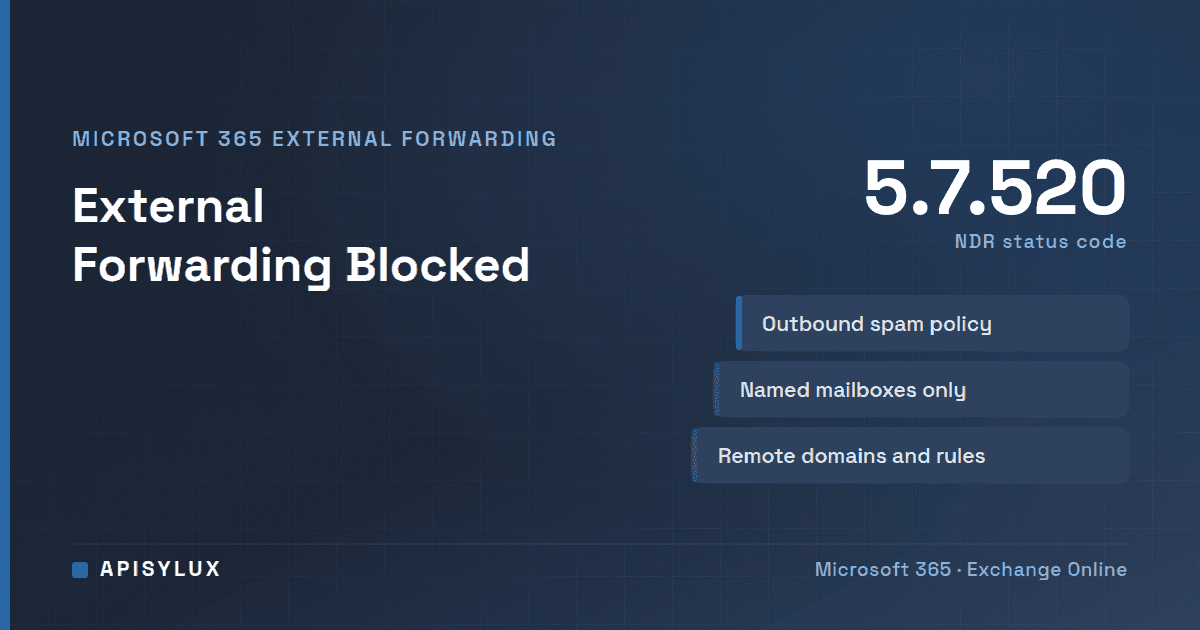
The bounce "550 5.7.520 Access denied, Your organization does not allow external forwarding" means a Microsoft 365 outbound spam filter policy blocked a message that was automatically forwarded to an address outside your organization. To fix it, an admin allows automatic forwarding for only the mailboxes that need it, using a custom outbound spam policy set to On - Forwarding is enabled, rather than switching it on for everyone.
Key takeaways
- The error comes from the outbound spam policy, not from the recipient's server. The sender gets the NDR.
- Set the policy to On only for the users who must forward. Keep the default policy blocking it, but check who forwards today before you change the default, because the change takes effect for every sender it covers.
- Check remote domains and mail flow rules too. If either blocks forwarding, the block typically wins, and a remote domain block is silent: no NDR.
- Treat unexpected forwarding as a possible account compromise before you allow anything.
- Menu names match Microsoft Learn as checked in October 2026, and Microsoft renames portals often. Check the linked Microsoft Learn pages if yours differs.
What does "550 5.7.520 Access denied, your organization does not allow external forwarding" mean?
When Exchange Online detects that a message was forwarded automatically and the outbound spam filter policy blocks that activity, the message is returned to the sender in an NDR (non-delivery report, or bounce). Microsoft documents the text as:
5.7.520 Access denied, Your organization does not allow external forwarding. Please contact your administrator for further assistance. AS(7555)The bounce the sender actually sees may read "Remote server returned '550 5.7.520 Access denied...", and the AS number at the end can differ from the documented one. Go by the sentence, not the code alone: bounces posted on Microsoft Q&A show both this forwarding message and the same 5.7.520 code with a different message about content identified as spam, which is a different problem.
Need help with IT Infrastructure?
Get a free strategy session with our experts — no commitment required.
Two kinds of automatic forwarding are covered. Users can create Inbox rules that forward to outside addresses, and admins can set mailbox forwarding (also called SMTP forwarding) on a mailbox. Both are controlled by the same policy setting. Forwarding between internal users is not affected. Microsoft documents the details in Control external email forwarding and fix 5.7.520 errors and lists the code in its NDR reference for Exchange Online.
One detail that confuses people: when forwarding is disabled by the policy, NDRs are generated for messages from external senders under every forwarding method. For internal senders, an NDR is generated only for mailbox forwarding, not for an Inbox rule. So the person who complains may be an external contact who emailed your user.
Why does Microsoft block auto-forwarding by default?
Microsoft's explanation is that email forwarding can be useful but can also pose a security risk through the potential disclosure of information, which attackers might use against your organization or its partners. Forwarding is also a classic sign of a compromised account. Microsoft's guidance for responding to a compromised mailbox lists rules that automatically forward email to unknown addresses, and recently added external forwarding, among the common symptoms (Respond to a compromised email account).
The setting has three values. Automatic - System-controlled is the default. It used to behave like On, but since 2021 it behaves like Off for new organizations and for existing ones that were not actively using it. Because behavior differs by organization, Microsoft recommends setting On or Off explicitly instead of leaving it on Automatic. On allows external forwarding. Off disables it and returns the NDR.
How do I check whether the forwarding is legitimate first?
Before allowing anything, find out who is forwarding and where to. The Auto forwarded messages report shows users automatically forwarding to external recipients for cloud accounts. You can also inspect a mailbox in Exchange Online PowerShell, using the commands from Microsoft's compromise guidance:
Get-Mailbox -Identity user@contoso.com | Format-List Forwarding*Address,DeliverTo*
Get-InboxRule -Mailbox user@contoso.com -IncludeHidden | Format-List Name,Enabled,RedirectTo,Forward*,Identity
Per Microsoft's guidance, a non-blank ForwardingSmtpAddress means mail is forwarded to an external recipient (unless ForwardingAddress is also set, in which case only that internal recipient gets it). On an Inbox rule, a non-blank ForwardTo, ForwardAsAttachmentTo or RedirectTo means the rule sends mail on to those recipients; check whether any of them are outside your organization. If the destination is an address the user does not recognise, stop here and follow the compromise procedure instead of changing policy.
How do I allow forwarding for one mailbox only?
Create a custom outbound spam policy that applies to the named senders. The default outbound spam policy applies to all senders and always has the lowest priority, so a custom policy takes precedence for the users it covers.
- Open the Microsoft Defender portal at
https://security.microsoft.comand go to Email & collaboration > Policies & rules > Threat policies > Anti-spam. The direct address ishttps://security.microsoft.com/antispam. - Select Create policy, then Outbound.
- Name the policy, for example "Allow external forwarding - named users".
- On Users, groups, and domains, add only the mailboxes (or one dedicated group) that need forwarding.
- On Protection settings, under Forwarding rules, set Automatic forwarding rules to On - Forwarding is enabled.
- Review and create the policy.
Two cautions from Microsoft's documentation. Outbound spam protection stops for a sender after the first (highest priority) policy that applies, so the custom policy's message limits and other settings replace the default's for those users. Set them deliberately. Also, if you add a Microsoft 365 Group under Users, the policy covers messages sent from the group address, while adding it under Groups covers messages sent by its members.
The same result in Exchange Online PowerShell takes two steps, because a policy and its rule are separate objects:
New-HostedOutboundSpamFilterPolicy -Name "Allow external forwarding - named users" -AutoForwardingMode On
New-HostedOutboundSpamFilterRule -Name "Allow external forwarding - named users" -HostedOutboundSpamFilterPolicy "Allow external forwarding - named users" -From "user1@contoso.com","user2@contoso.com"
A policy created in PowerShell does not appear in the Defender portal until a rule is attached to it (Configure outbound spam policies). To change an existing policy, use Set-HostedOutboundSpamFilterPolicy -Identity "<PolicyName>" -AutoForwardingMode On. The valid values are Automatic, On and Off, and the setting applies to cloud-based mailboxes only (Set-HostedOutboundSpamFilterPolicy).
Warning: changing the default policy affects everyone. Setting the default policy to On allows external forwarding for every sender not covered by a custom policy. Setting it to Off disables every existing Inbox rule and mailbox forwarding to outside addresses for those senders, and their forwarded mail starts bouncing at once. Use this order:
- Run the Auto forwarded messages report and the checks above, so you know who forwards today and where to.
- Create the custom policy (On) for the mailboxes that legitimately need forwarding, and test it.
- Only then set the default policy explicitly to Off, if that is your intent, and tell the affected users first.
To test, send a message to the forwarding mailbox from an outside address and confirm it arrives at the destination. If it still bounces, or silently never arrives, check the next section before changing anything else.
Remote domains and mail flow rules: are they the other places forwarding is controlled?
Yes. Microsoft states that when one setting allows external forwarding and another blocks it, the block typically wins. If the policy is now On but forwarding still fails, check these:
| Control | Where | Effect |
|---|---|---|
| Outbound spam policy | Defender portal > Anti-spam | Off returns the 5.7.520 NDR for the covered senders |
| Remote domain | Exchange admin center > Mail flow > Remote domains | If automatic forwarding is disabled for the domain, Inbox-rule and Outlook on the web forwards are not sent, and no error message is returned |
| Mail flow rule | Exchange admin center > Mail flow > Rules | Can detect and block messages forwarded by Inbox rules |
In the Exchange admin center, the remote domain option is in the automatic replies section as the choice to allow automatic forwarding. In PowerShell it is Set-RemoteDomain -Identity <Name> -AutoForwardEnabled $true. Microsoft's remote domains page notes that remote domain settings do not affect forwarding that admins set up through mailbox forwarding or mail flow rules; mailbox forwarding is still subject to the outbound spam policy. A useful pattern, which Microsoft describes, is to allow forwarding in the outbound spam policy and then use a remote domain to limit which external domains it can reach.
Should you forward at all? Shared mailboxes and other alternatives
Often the better answer is not to forward. Forwarding to an external domain does not stop spam, phishing or high-confidence phishing messages from being forwarded, so the recipient needs their own filtering (Configure email forwarding). Consider these first:
- For a leaver, convert the mailbox to a shared mailbox so several people can access it inside the tenant. Microsoft notes a shared mailbox cannot exceed 50 GB.
- For a team inbox, use a shared mailbox or a distribution group instead of forwarding to personal addresses.
- For a partner who needs a copy, forward to a specific address under a scoped policy and, if you can, restrict the destination domain with a remote domain.
If you do need forwarding, keep the allowed list short and review it periodically using the Auto forwarded messages report.
FAQ
Why did the error appear when nothing changed?
The default value, Automatic, behaves differently by organization, which is why Microsoft recommends setting On or Off explicitly. A new Inbox rule or mailbox forwarding setting may also have been added recently, which is worth checking for compromise.
Can the user fix it themselves?
No. The policy is an admin setting. A user can only remove their forwarding rule or ask an admin to change the policy.
Does this affect forwarding to colleagues?
No. Microsoft states that outbound spam policies do not affect forwarding between internal users.
Which role do I need to change the policy?
Membership in the Organization Management or Security Administrator role groups in Exchange Online, or the Security Administrator or Global Administrator Microsoft Entra roles. Microsoft advises least privilege, so avoid Global Administrator where you can.
If you would rather have someone review your forwarding rules and outbound policies, see our Microsoft 365 administration service, or the wider email troubleshooting help.