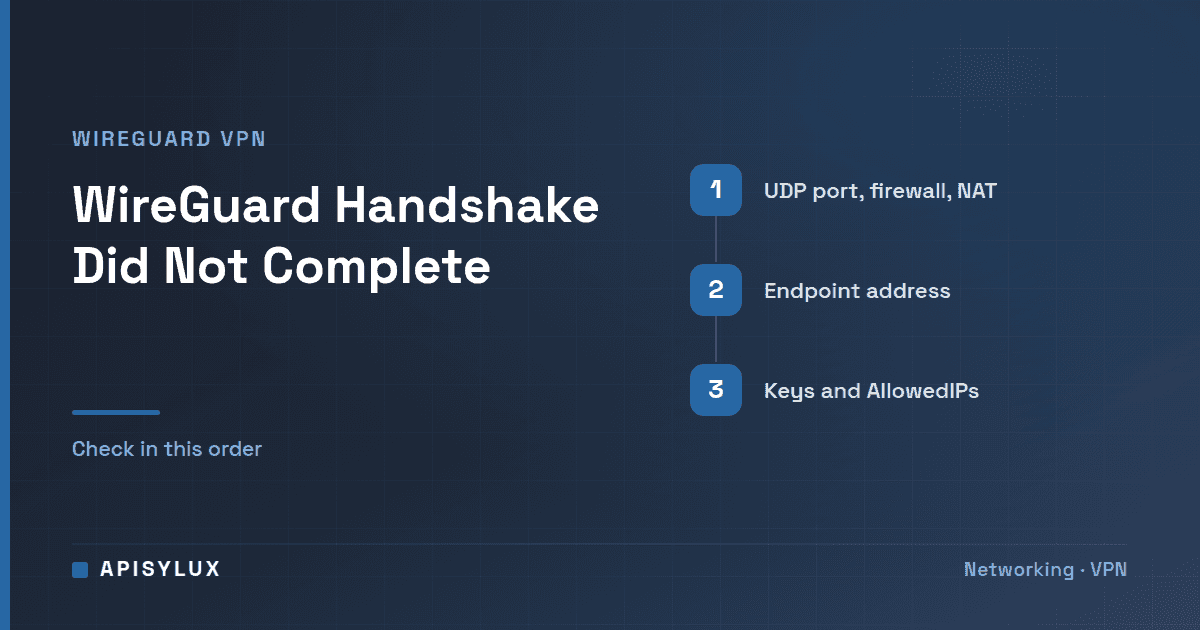
"Handshake did not complete after 5 seconds, retrying" means this WireGuard peer sent a handshake initiation and got no valid reply within WireGuard's 5-second retry timer, so the tunnel never came up. The usual causes are four: the UDP packets do not reach the other side (firewall, port forward or NAT), the Endpoint is wrong, a public key does not match, or no traffic is routed to the peer by AllowedIPs. Run sudo wg show on both ends and look for a "latest handshake" line first.
sudo wg show                          # no "latest handshake" line = no handshake yet
sudo ss -uln | grep 51820             # on the server: is the UDP port open? (use your ListenPort)
sudo tcpdump -ni any udp port 51820   # on the server: do the client's packets arrive?
Key takeaways
- WireGuard runs over UDP only. A handshake that never completes often means UDP is blocked, not forwarded, or sent to the wrong address.
- A server with the wrong public key for a client stays silent. It does not send an error, so a key mismatch looks exactly like a blocked port.
- Open the firewall for the one UDP port the server listens on, nothing wider. Restrict the source address if the client's address is fixed.
- A peer behind NAT that must receive traffic needs
PersistentKeepalive. The WireGuard quick start suggests 25 seconds. - WireGuard does not compare the two machines' wall clocks, so ordinary clock skew is not a cause. A clock that jumps backwards can be.
What does "handshake did not complete after 5 seconds" mean?
WireGuard sets up its session keys with a short two-message handshake. The initiator sends a handshake initiation and waits for a response. The retry timer is REKEY_TIMEOUT, which is 5 seconds, and a line is logged each time that timer expires without a reply. The exact wording depends on the implementation:
| Implementation | Log line |
|---|---|
| Linux kernel module | wg0: Handshake for peer 1 (203.0.113.5:51820) did not complete after 5 seconds, retrying (try 2) |
| WireGuardNT, the Windows kernel driver | Handshake for peer 1 (203.0.113.5:51820) did not complete after 5 seconds, retrying (try 2) |
| wireguard-go (the userspace implementation) | peer(AbCd…WxYz) - Handshake did not complete after 5 seconds, retrying (try 2) |
The peer number, address and key abbreviation are examples; the wording is from the kernel, WireGuardNT and wireguard-go source. Routers and other products may log it their own way.
Need help with IT Infrastructure?
Get a free strategy session with our experts — no commitment required.
WireGuard retries a fixed number of times. The source defines MAX_TIMER_HANDSHAKES as 90 divided by REKEY_TIMEOUT, so it keeps trying for roughly 90 seconds, then logs "did not complete after 20 attempts, giving up", drops the packets it had queued and waits for new traffic before trying again. The WireGuard protocol page describes the same behaviour: the initiation is retried after REKEY_TIMEOUT plus jitter if no response arrives.
Two practical points follow. First, in the Linux kernel these lines are debug messages, so on a Linux server you only see them after enabling dynamic debug, if your kernel supports it. The WireGuard quick start gives the command (for userspace implementations it says to set LOG_LEVEL=verbose instead):
sudo modprobe wireguard
echo module wireguard +p | sudo tee /sys/kernel/debug/dynamic_debug/control
sudo dmesg -w | grep -i wireguard
Second, a handshake is only started when there is traffic to send. If nothing is being sent to the peer, there is no handshake and no message, which is normal and not a fault.
Is UDP reaching the server? Firewall, port forward and NAT
Test this before touching keys: it is quick, and from the client's side a blocked port and a wrong key look identical. On the server, find the port WireGuard is listening on. ListenPort in the [Interface] section sets it; per wg(8), if it is not specified the port is chosen randomly, so a server needs a fixed value for a firewall rule to make sense.
sudo wg show wg0 listen-port
sudo ss -uln | grep 51820      # replace 51820 with the port printed above
Then watch for the client's packets while the client tries to connect:
sudo tcpdump -ni any udp port 51820- Nothing arrives: the packets are being dropped before the server. Check, in order, the cloud security group or provider firewall, the router's port forward to the server's LAN address, and the server's own firewall.
- Packets arrive but the server never replies: check the server's own firewall first, then the keys. If the server does not recognise the client's key it stays quiet: the protocol page states that the server "does not even respond at all to an unauthorized client; it is silent and invisible." See the next section.
- Packets arrive and replies leave, but the client never sees them: look for a firewall or NAT problem on the client side, or asymmetric routing on a multi-homed server.
Open only what WireGuard needs: one UDP port, to the server. Warning: on a remote server, firewall changes can lock you out. Work in this order:
- Check the current state with
sudo ufw status verbose. - Add the WireGuard rule. Use the second form when the client has a fixed address.
- If UFW is inactive and you plan to enable it, add a rule for your SSH access first. The ufw(8) manual warns that
ufw enableflushes its chains and "may drop existing connections (eg ssh)", and notes that rules can be added before the firewall is enabled. - Check
sudo ufw statusagain, then retry the client.
sudo ufw allow 51820/udp                                      # any source
sudo ufw allow proto udp from 203.0.113.10 to any port 51820  # one known client address
Do not open a range of ports, do not allow all UDP, and do not switch the firewall off to test. If the server sits behind a router, forward that one UDP port to the server's LAN address and nothing else. If your internet provider puts the server's connection behind carrier-grade NAT, there is no public address to forward to. One way round it is to make the behind-NAT side the client and put the server on a host that has a public address.
Are the keys and the Endpoint right?
Each side holds its own private key and the other side's public key. Common mistakes are pasting the same side's public key into both configs, or pasting a private key where a public key belongs. Compare what each interface actually uses with what the other side expects:
sudo wg show wg0 public-key    # on each machine: the public key this interface uses
sudo wg show wg0 peers         # on the other machine: the peer public keys it knows
On the server, the client's public key must appear as a PublicKey under a [Peer]. On the client, the server's public key must be the PublicKey of its [Peer]. If you use a PresharedKey, it must be identical on both ends. A wrong key anywhere produces the same symptom as a blocked port: repeated "did not complete" lines and no reply.
The client's Endpoint is the server's public address and port, written host:port, for example Endpoint = vpn.example.com:51820. Check three things:
- The port equals the server's
ListenPort. - The address is the server's public address, not its private LAN address, unless both are on the same network.
- If it is a DNS name, it resolves to the right address. The
wgtool resolves the hostname when the configuration is set, and the kernel keeps only the resulting address; WireGuard ships a reresolve-dns script for exactly this reason. After a DNS change, restart the tunnel on the client withsudo wg-quick down wg0 && sudo wg-quick up wg0. Do not run that over the same tunnel you are connected through.
The server does not need an Endpoint for a roaming client. Per wg(8), a peer's endpoint "will be updated automatically to the most recent source IP address and port of correctly authenticated packets from the peer", so leave it out on the server unless the client has a fixed address.
Can AllowedIPs or routing stop the handshake?
AllowedIPs does two jobs. Per wg(8) it lists the addresses "from which incoming traffic for this peer is allowed and to which outgoing traffic for this peer is directed". That second half matters here: WireGuard picks the peer for an outgoing packet by matching its destination against AllowedIPs. If you ping an address that is in no peer's AllowedIPs, WireGuard has no peer to send it to, so no handshake is ever attempted.
Typical settings:
- Client reaching one remote network: the server's tunnel address plus the remote subnet, for example
AllowedIPs = 10.8.0.1/32, 192.168.10.0/24. - Client sending all traffic through the tunnel:
0.0.0.0/0, ::/0.wg-quick(8)then makes the interface the default route. - Server entry for a client: the client's own tunnel address, for example
AllowedIPs = 10.8.0.2/32. Give each client its own address. The WireGuard overview describes the server choosing which peer to send a packet to by comparing its destination with each peer's list of allowed IPs, so each client's address should appear under that client's[Peer]only.
Test with a tunnel address that is certainly in AllowedIPs, such as ping 10.8.0.1, so you know the packet is routed to the peer and a handshake is attempted.
Behind NAT: when do I need PersistentKeepalive?
WireGuard is quiet when idle. A NAT device or stateful firewall forgets a UDP mapping after a period without traffic, and then the server can no longer reach the client. The quick start explains that a peer behind NAT or a firewall that wants to receive packets "must keep the NAT/firewall mapping valid, by periodically sending keepalive packets". Persistent keepalive is off by default.
Set it on the peer that sits behind the NAT, usually the client or the branch-office router, in the [Peer] block that points at the server:
[Peer]
PublicKey = SERVER_PUBLIC_KEY
Endpoint = vpn.example.com:51820
AllowedIPs = 10.8.0.1/32, 192.168.10.0/24
PersistentKeepalive = 25
Per wg(8) the value is a number of seconds between 1 and 65535, and 0 or "off" disables it. Keepalive keeps an existing mapping alive. It does not fix a blocked port or a wrong key. For a site-to-site tunnel between two offices, see our site-to-site VPN guide.
Does clock skew break the handshake?
Not in the way people expect. A WireGuard handshake initiation carries a TAI64N timestamp, but the receiver does not compare it with its own wall clock. The Linux kernel code keeps the latest timestamp it accepted from each peer and treats a new initiation as a replay if its timestamp is less than or equal to that stored value. The protocol page says the same: the server "keeps track of the greatest timestamp received per client and discards packets containing timestamps less than or equal to it."
So two machines whose clocks are minutes apart will still handshake. What can fail is a clock that goes backwards on the initiating side, for example a device whose clock was reset to an earlier time after it had already connected, or a replacement device that reuses the old key with its clock set earlier. The server will ignore those initiations as replays until the timestamp passes the stored value. The cure is correct time on that device, so enable NTP.
The handshake completes but nothing works: is it MTU?
If sudo wg show now prints a "latest handshake" time but pages hang or large transfers stall, you are past this error and into a different problem. A too-large MTU is one possible cause. Handshake messages are small (the initiation is 148 bytes, per the message layout on the protocol page), so they get through, while full-size packets can be too big once WireGuard's overhead is added and are dropped on the path.
When the Linux module creates an interface it sets the MTU to the standard Ethernet payload size minus WireGuard's own overhead. wg-quick(8) states that, if you do not set MTU, it is "automatically determined from the endpoint addresses or the system default route, which is usually a sane choice". If it is not sane on your link, for example over PPPoE or a mobile connection, set a lower value in [Interface] and test with a do-not-fragment ping:
[Interface]
MTU = 1380
ping -M do -s 1300 10.8.0.1 # Linux ping; -M do forbids fragmentationThe 1380 and 1300 values are examples, not recommendations. Per ping(8), -M do sets the don't-fragment flag and -s sets the number of data bytes. Lower the MTU stepwise until large packets pass. If the handshake itself never completes, MTU is not your problem; go back to the sections above.
What is the quickest order to check?
| Check | Command | What it tells you |
|---|---|---|
| Is the server listening? | sudo wg show wg0 listen-port, then sudo ss -uln | The UDP port it is using |
| Do client packets arrive? | sudo tcpdump -ni any udp port 51820 | Nothing means a firewall, forward or wrong Endpoint |
| Are the keys paired? | wg show wg0 public-key against the other side's wg show wg0 peers | A mismatch gives silence |
| Is traffic routed to the peer? | AllowedIPs and a test ping | No match means no handshake attempt |
| Is NAT forgetting the mapping? | PersistentKeepalive = 25 | Server cannot reach a quiet client |
| Did it work after all? | sudo wg show | A "latest handshake" line |
If you run VPNs for several offices and want help with monitoring and troubleshooting them, see our network management and monitoring page, or our guide to VPN setup for offices and remote teams.
Primary documentation: WireGuard quick start, WireGuard protocol, wg(8), wg-quick(8), and the kernel source for the retry timers and timestamp check.
FAQ
Does the message mean the server is down?
Not necessarily. It means no valid reply arrived. The server could be down, but it could equally be reachable and silently ignoring you because of a key mismatch, or be unreachable because UDP is blocked. Use tcpdump on the server to see whether your packets arrive.
Is the message the same on routers like MikroTik, FRITZ!Box or UniFi?
The protocol is the same, so the same four causes apply: UDP path, Endpoint, keys and AllowedIPs. The configuration screens and log wording differ, so check the product's own documentation for where to read the handshake time and set the listen port and keepalive.
Do I need to open TCP as well?
No. WireGuard uses UDP only. Opening TCP for it does nothing and widens your firewall for no reason.
Should I set PersistentKeepalive on both sides?
No. Set it on the side behind NAT that needs to be reachable. A public server does not need it for its own mapping. The quick start recommends turning it on only when you need it, because it makes WireGuard slightly more chatty.
How do I know the tunnel is up?
Run sudo wg show. A "latest handshake" line with a recent time, plus non-zero transfer counters, shows a completed handshake. No such line means no handshake yet.