Overview
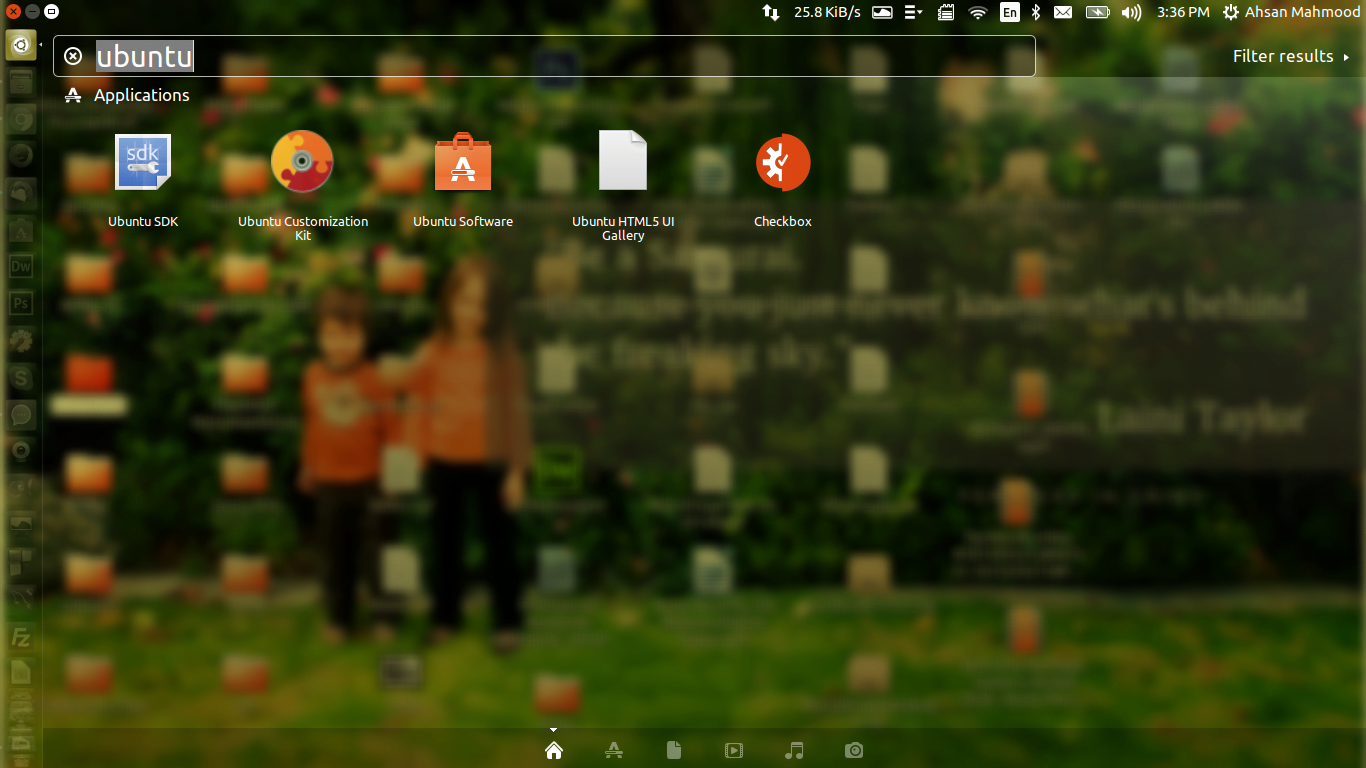
Most of the applications on Ubuntu comes without installer package. Installer packages automatically install the shortcut for the ease to run the application from unity dash. Where without installer packages, you just need to extract the package and run the executable file. Therefore, whenever you need to run the application, you will have to go to extracted package directory and run the application by executing run file.
How to create .desktop shortcut
Following this articles, you will know how to make and add custom shortcut for non-installer packages of applications.
Need help with Linux?
Get a free strategy session with our experts — no commitment required.
First of all, create an empty document in a folder. Suppose it's desktop folder. Right click on your desktop, select 'New Document' and click on 'Create new Document'.
Name it whatever you like ending with '.desktop'. It is always suggested to use the application name.
Save it and open the file in editor to update the information. Information about shortcut is as following format.
[Desktop Entry]**
Version1.0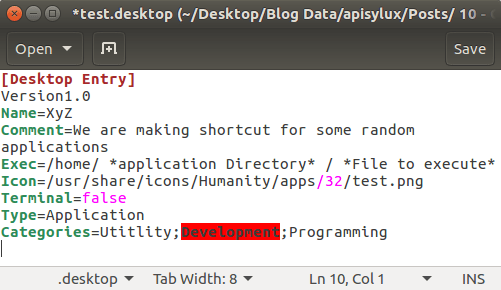
Name=XyZ
Comment=We are making shortcut for some random applications
**Exec=/home/ *application Directory* / *File to execute***
Icon=/usr/share/icons/Humanity/apps/32/test.png
Terminal=false
Type=Application
Categories=Utitlity;Development;Programming
Some notes:
<b>Version**
-
Should be 1.0, it refers to the .desktop file version, not to the program version.
Key steps and notes
**Name**
-
The name that should be displayed on the menu.
**Exec**
-
The full path to the executable. No need to use ‘.’, it just means the current dir
**Path**
-
The dir that will be set as current when the entry is run. You usually don’t need to set it, but I have added it just in case. It is the same as using ‘cd’ in your command line
**Icon**
-
The path to the icon file that will be used for the file, it’s likely that the one that you put doesn’t exists, I have changed it for a generic one. You should change this to the file that you want the icon to use. It is the best practice to copy the image to System icons directory as mentioned already in the format text.
**Mimetype**
-
Specifies the kind of files that this program is able to open. *I’ve left it empty.*
**StartupWMClass**
-
Only needed for some programs, It is usually needed by java programs but only set it if you notice some problems.
Final notes
To use the desktop file from the Dash you will need to copy it to /usr/share/applications for any user to be able to use it or to ~/.local/share/applications (where ~ means your user directory) if you just want it to be available for one user.
To copy desktop file to /usr/share/applications, you need the administrative permissions. Learn how to get Administrative Permissions.